AkbarAhmed.com

Engineering Leadership

Introduction

Google Drive is a combination of cloud storage and local disk synchronization services.

Google Drive allows you to use Google’s servers as your primary file storage, and then sync those files to one or more devices. Supported devices include Windows (XP, Vista, 7), Mac OS X, iPad, iPhone, and Android (tables and phones).

Google Drive differs from sharing oriented services where the file is uploaded to a server to be shared (like a browser based FTP service such as Box). It also differs from pure sync services where the file is never actually stored on a server, but is simply synchronized between multiple devices.

What’s good about Google Drive?

In 2 words: Price, Google.

As of July 5, 2012, Google Drive has lower prices than many of the alternatives. Also, if you’re a heavy user of Google’s other services (like me), then the integration with other Google services is excellent. Personally, I’m find the ability to email a link to a file in Google Drive to be a superior experience to attaching a large file to an email.

While the “what’s good” section is small, the short version is that Google Drive does what it is supposed to do. It syncs your files to Google’s servers and keeps your devices up to date.

What’s not so good about Google Drive?

The upload problem

I have been using Google Drive since it was first released, and it’s still uploading files. Unless you have huge upload bandwidth, Google Drive suffers from the same problem as all cloud based storage services. That is, how do you get 100 GB, 200 GB or more into the cloud. Unfortunately, we live in a download world, and most people have a faster download than upload.

Bugs and other functionality failures

I have used Google Drive on a number of different platforms, including 2 Windows XP machines, 1 Windows 7 machine, and 2 Android phones (Galaxy Nexus and Droid Razor Maxx).

Of all the platforms, Windows 7 has been the least buggy, but it’s still not perfect.

Windows Explorer crashes (consistently) on Windows XP when you browse the Google Drive folder. I’m not the only one to experience this problem: http://productforums.google.com/forum/#!topic/drive/fBaZxY5QUBc

Google Drive is a bandwidth hog

Google Drive uses all of the bandwidth that your laptop/desktop has access to. If you only have 1 machine on a home network and you’re syncing a big file, say a 1GB home video, then you’ll notice that other web pages open slowly. Of course, if you have 2 more people on a home or small business network, then other users will complain of that their Internet access is slow.

To date, Google Drive is not allowed on our corporate network, and I agree with the policy. I’d hate to see what happens if 10, 20 or more people are all syncing large files at the same time. While the bandwidth per client is controlled on a corporate network, it still means that each person with Google Drive will suffer with a slow Internet experience (until the sync is done).

Missing features

There are some important/useful features that are currently missing from Google Drive, including:

  • Manual sync: There is currently no way to force Google Drive to sync.
  • File size: Is that a 1MB file or a 1GB file? You’ll never know in Google Drive’s web interface, so have fun figuring out the download time. You’ll notice this problem when you sync your home movies.
  • Child folder sync: While you can use the Preferences to select which folders to sync, you can only select/deselect top level folders. There is no way to sync a subset of a folder.
  • List of completed/in process files: When you add files to Google Drive, you’ll see a status message of 1 of 125 files synced. However, there is no way to see what is done, and what is in process.
  • Bandwidth management: As mentioned elsewhere in this post, Google Drive will use all of the bandwidth that’s given to it. So, you’ll need to use your router to control how much bandwidth is made available to Drive.

Should you use Google Drive in your business?

The short answer is no. At least not yet.

If you have Windows XP, then you should wait until Google fixes the bugs with Windows Explorer. You don’t want users complaining that Windows Explorer crashes every time they view files in their Google Drive folder.

I’d also wait until Google adds bandwidth controls.

Lastly, local sync is a required feature for a business use case, where most users will be on the same network. (DropBox has has this feature, called LAN Sync, for a while.)

Alternatives to Google Drive

There are a lot of alternatives when looking into cloud storage and synchronization services including:

Summary

Overall, Google Drive is a good solution at an attractive price. There is room for improvement, but if you’re a big Google user then it’s an easy winner.
Introduction

sed provides a quick and easy way to find and replace text via it’s search command (‘s’).

Sample File

Copy and paste the following text into a file named practice01.txt.


Author: Akbar S. Ahmed
Date: July 1, 2012
Subject: Sed

sed is an extremely useful Unix/Linux/*nix utility that allows you to manipulate a text stream. It is useful when working with Hadoop, as sed is often used to manipulate text prior to MapReduce.

sed practice

name Akbar
state California
state CA
OS Linux, OS X, Windows
blog http://akbarahmed.com

Substitution (Find and Replace)

The main sed command that you’ll use frequently is s, which stands for substitute.

Let’s start with a basic example.

Substitute Linux with Ubuntu

sed -i 's/Linux/Ubuntu/' practice01.txt

If you’re using a Mac, then you’ll need to adjust the command listed above to work with the BSD version of sed. Fortunately, this command also works in Ubuntu.

sed 's/Linux/Ubuntu/' practice01.txt > practice01-output.txt

Let’s check our work.

cat practice01-output.txt

It’s important to understand each component of a command, including the options. In our command above we used the following:

  • sed: This is the sed utility
  • -i: “In place”. -i means edit and save changes to the same file. In the two commands above, you’ll notice that we have to use > somefile to redirect the output when we don’t use -i.
  • s: Substitute. The first word (ex. Linux) is the word we want to search and replace with the second word (ex. Ubuntu).

Substitute all instances of a word

By default, sed only replaces the first instance of a word on a given line.

Create a new file named practice02.txt by running the following command.

echo "sed is a stream editor. sed is a stream editor." > practice02.txt

Let’s begin by using the command we already learned to change ‘sed’ to ‘vi’.

sed 's/sed/vi/' practice02.txt > practice02-output.txt
cat practice02-output.txt

You should see output that looks like the following:
vi is a stream editor. sed is a stream editor.

Notice how only the first instance of ‘sed’ was changed to ‘vi’.

Let’s create a new practice file by running the following command. This time we’ll create 3 lines with the same text, and we’ll append a ‘cat’ command so that we can immediately see the contents of our file.

for i in 1 2 3; do echo "editorX is a stream editor. editorX is a stream editor." >> practice03.txt; done; cat practice03.txt

To make a global substitution (find and replace all), we need to add the ‘g’ command to ‘s’.

sed 's/editorX/editorY/g' practice03.txt > practice03-output.txt
cat practice03-output.txt

Limiting which lines are edited

sed allows us to easy control which lines are edited. For example, if our data has a header row in the first row, then we can limit editing to only the first row.

sed '1s/editorX/myEditor/g' practice03.txt > practice03a-output.txt
cat practice03a-output.txt

Let’s now edit lines 2 to 3 only.

sed '2,3s/editorX/yourEditor/g' practice03.txt > practice03b-output.txt
cat practice03b-output.txt

Wrap every line in double quotes

This next command is important because it higlights the fact that you can use regex with sed. In fact, the use of regex with sed provides you with an extremely powerful tool to edit files.

sed 's/.*/"&"/g' practice03.txt > practice03c-output.txt

While this post provides a quick into to sed, it’ll be worth your while to learn it in detail as sed is a core part of Linux’s text processing capabilities. Further, sed is an extremely useful tool to preprocess files before submitting them to a MapReduce job in Hadoop.

Introduction

sed is short for Stream EDitor, which is a utility that allow you to parse and transform text one line at a time. sed is a useful tool, along with grep and awk, when manipulating text files. It is also often overlooked when working with Hadoop, although the use of sed, awk and grep can help speed up processing times by preprocessing text before sending it to a MapReduce job.

Introduction

There are many reasons for changing the Pentaho BI Server’s default port, but one of the most common is a conflict with another server. I ran into this issue where both the Pentaho User Console and the Hadoop MapReduce ShuffleHandler were trying to use port 8080. I wrote an earlier article on how to change the default port for Hadoop MapReduce ShuffleHandler.

So this got me thinking about how to change the Pentaho BI Server port, which is the focus of this article. Plus, it’s always good to know which ports each server requires so that you can manage your firewall, security, and so on.

Step-by-Step

Open a terminal and enter the commands below.

Update server.xml

cd /opt/pentaho/biserver-ce/tomcat/conf

We’ll make a copy of server.xml before we edit it.

I like to keep an original copy of each configuration file that I edit. My standard is to append ‘.org’ to the end of the file.

sudo cp server.xml server.xml.org

I’m going to change from port 8080 to port 8585. Also, I’m going to use sed so that I can change multiple settings with a single command.

sudo sed -i 's/port="8080/port="8585/g' server.xml

Next, we’ll have to update one of the comments that references port 8080. I like to keep my comments in sync with the configuration.

sudo sed -i 's/port 8080/port 8585/g' server.xml

Let’s check what we changed via sed. This command is a good use of the server.xml.org file that we created above.

diff server.xml server.xml.org

You should see output similar to:

< Define a non-SSL HTTP/1.1 Connector on port 8585
---
> Define a non-SSL HTTP/1.1 Connector on port 8080
69c69
< <Connector URIEncoding="UTF-8" port="8585" protocol="HTTP/1.1"
---
> <Connector URIEncoding="UTF-8" port="8080" protocol="HTTP/1.1"
75c75
< port="8585" protocol="HTTP/1.1"
---
> port="8080" protocol="HTTP/1.1"

Update web.xml

cd /opt/pentaho/biserver-ce/tomcat/webapps/pentaho/WEB-INF
sudo cp web.xml web.xml.org
sudo vi web.xml

Update the fully-qualified-server-url‘s param-value to:

http://localhost:8585/pentaho/

The complete node should look like:


  fully-qualified-server-url
  http://localhost:8585/pentaho/

Restart the Pentaho BI Server

cd /opt/pentaho/biserver-ce
sudo -u pentaho ./stop-pentaho.sh
sudo -u pentaho ./start-pentaho.sh

Login to the Pentaho User Console

  1. Open a web browser to http://localhost:8585.
  2. Click Evaluation Login and select a user type to login as.

What is the Google Wallet Android app?

I have finally had an occasion to use the Google Wallet app on my Galaxy Nexus. So what is the Google Wallet Android app? It’s basically an Android app that acts like a digital credit card that you can use to purchase coffee at Peet’s, medicine at CVS and so on.

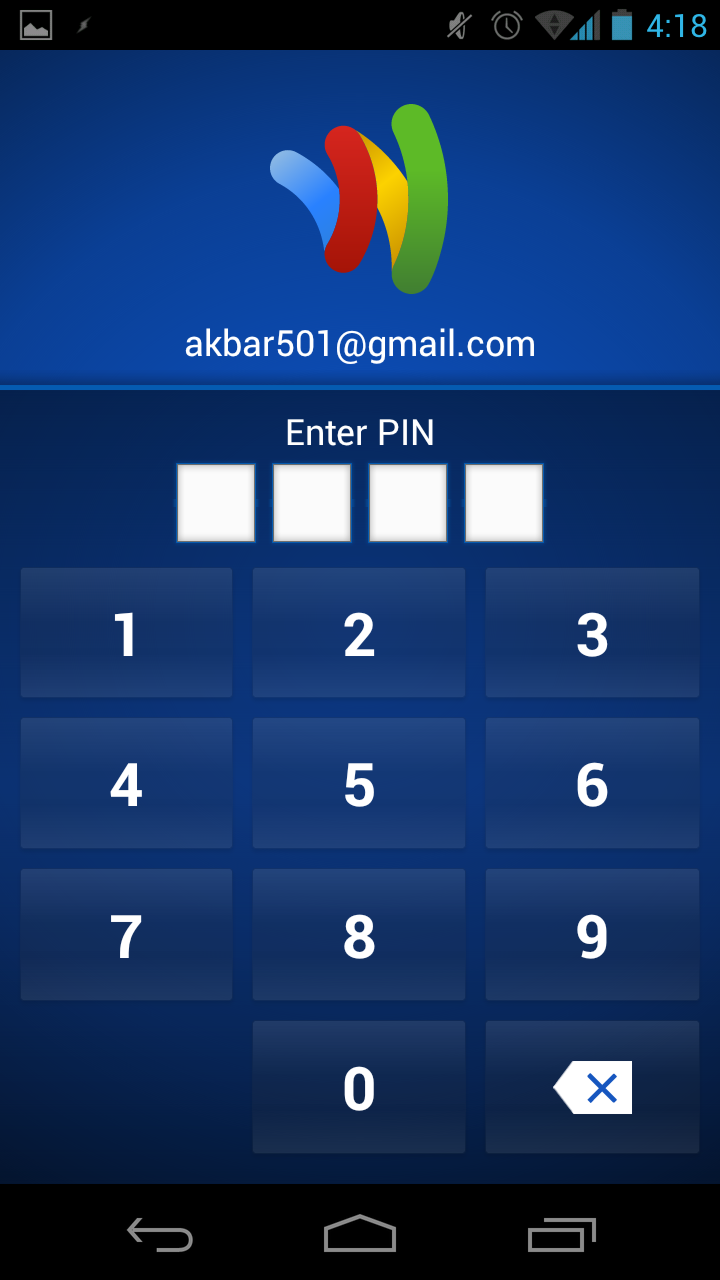
There is a special reader in the store that you tap your phone against when checking out (kinda like a credit card swiper except that you tap your phone instead of swiping your card). After tapping, you are prompted to enter a PIN (just like an ATM card), everything is automatically paid for, and your ready to pick up your bag and walk out the door.

To use Google Wallet, you will need a phone with an NFC chip. As of June 2012, the only phone that supports Google Wallet (to my knowledge) is the Galaxy Nexus.

A cool app

I have now used Google Wallet to make a few purchases and I have to say that it’s a nice upgrade to a plastic credit card. I have found that if I enter my PIN before getting to the checkout counter, I can just Tap and Go.

The coolness factor of the technology also helps. I got a free coffee at Peet’s the other day because the barista loved that I paid with my phone.

Security

I’m not too worried about security at this point at I don’t have my credit cards linked to Google Wallet. Currently, I’m using the Google Prepaid Card so if I lose my phone it’ll be like losing a gift card.

However, for this form of payment to go mainstream security will be very important, which is why I would like to see apps from the the banks and credit card companies.

A Multi-App Future?

Much as we have multiple debit and credit cards in our wallet, I think the future may be to have multiple digital payment apps, such as a Visa app, an American Express app, and so on. It would be nice if during payment a list of payment apps is displayed so that we can select one, much as we select a credit card when we open our wallet.

Another benefit of multiple apps would be security. One issue I see with a single app controlling every credit card is that it forms a single point of failure (in terms of a security breach). Personally, I also think the banks and financial institutions have a much longer history writing software that secures our payments, so an app from Visa may have tighter security that one from Google, Microsoft, Apple or another non-financial institution.

Summary

Google Wallet is a cool and useful app. Unfortunately, the number of phones that support the app are limited, and the NFC readers are only in a few big name stores. But, it’s nice to use the future today (unless you’re from Japan, then paying with your phone is old hat).

Introduction

I had installed JDK 6.0 update 31 in an earlier post. However, I now need to write a Java application that requires the features available in JDK 7.

In this post, I will install JDK 7 update 5 as a secondary JDK, while JDK 6.0 u31 will be the primary JDK. It’s perfectly normal to have multiple JDKs on a single machine to support the requirements of different applications. Fortunately, it’s easy to use a different JDK on a per application basis.

Download

I have a 64 bit version of Ubuntu 12.04 LTS installed, so the instructions below only apply to this OS.

  1. Download the Java JDK from http://www.oracle.com/technetwork/java/javase/downloads/jdk7-downloads-1637583.html.
  2. Click Accept License Agreement
  3. Click dk-7u5-linux-x64.tar.gz
  4. Login to Oracle.com with your Oracle account
  5. Download the JDK to your ~/Downloads directory
  6. After downloading, open a terminal, then enter the following commands.

Installation

Open a terminal, then enter the following commands:

cd ~/Downloads
tar -xzf jdk-7u5-linux-x64.tar.gz

Note:
The jvm directory is used to organize all JDK/JVM versions in a single parent directory. As this is our 2nd JDK, we’ll assume that the jvm directory already exists.

sudo mv jdk1.7.0_05 /usr/lib/jvm

The next 3 commands are split across 2 lines per command due to width limits in the blog’s theme.

sudo update-alternatives --install "/usr/bin/java" "java"  \
	"/usr/lib/jvm/jdk1.7.0_05/bin/java" 2
sudo update-alternatives --install "/usr/bin/javac" "javac"  \
	"/usr/lib/jvm/jdk1.7.0_05/bin/javac" 2
sudo update-alternatives --install "/usr/bin/javaws" "javaws"  \
	"/usr/lib/jvm/jdk1.7.0_05/bin/javaws" 2
sudo update-alternatives --config java

You will see output similar to the following (although it’ll differ on your system). Read through the list and find the number for the Oracle JDK installation (/usr/lib/jvm/jdk1.7.0_05/bin/java)

There are 2 choices for the alternative java (providing /usr/bin/java).

  Selection    Path                               Priority   Status
------------------------------------------------------------
* 0            /usr/lib/jvm/jdk1.7.0_05/bin/java   2         auto mode
  1            /usr/lib/jvm/jdk1.6.0_31/bin/java   1         manual mode
  2            /usr/lib/jvm/jdk1.7.0_05/bin/java   2         manual mode

Press enter to keep the current choice[*], or type selection number:

On my system I did entered 1 to keep JDK 1.6.0 u31 as my primary JDK (change the number that is appropriate for your system). To enter 1, press 1 on the keyboard, then press Enter.

sudo update-alternatives --config javac
There are 2 choices for the alternative javac (providing /usr/bin/javac).

  Selection    Path                                Priority   Status
------------------------------------------------------------
* 0            /usr/lib/jvm/jdk1.7.0_05/bin/javac   2         auto mode
  1            /usr/lib/jvm/jdk1.6.0_31/bin/javac   1         manual mode
  2            /usr/lib/jvm/jdk1.7.0_05/bin/javac   2         manual mode

Press enter to keep the current choice[*], or type selection number:

I entered 1 then pressed Enter to keep JDK 1.6.0 u31 as my primary javac command.

sudo update-alternatives --config javaws
There are 2 choices for the alternative javaws (providing /usr/bin/javaws).

  Selection    Path                                 Priority   Status
------------------------------------------------------------
* 0            /usr/lib/jvm/jdk1.7.0_05/bin/javaws   2         auto mode
  1            /usr/lib/jvm/jdk1.6.0_31/bin/javaws   1         manual mode
  2            /usr/lib/jvm/jdk1.7.0_05/bin/javaws   2         manual mode

Press enter to keep the current choice[*], or type selection number:

I entered 1 then pressed Enter to keep JDK 1.6.0 u31 as my primary javaws command.

As a final step, let’s test each of the commands to ensure everything is setup correctly.

java -version

The output should be:
java version "1.6.0_31"
Java(TM) SE Runtime Environment (build 1.6.0_31-b04)
Java HotSpot(TM) 64-Bit Server VM (build 20.6-b01, mixed mode)

javac -version

The output should be:
javac 1.6.0_31

javaws -version

The output should be:
Java(TM) Web Start 1.6.0_31, which is followed by a long usage message.

That’s it, the JDK 7 u5 is installed.

Introduction

Creating a DB connection from Kettle to MySQL involves creating a MySQL use who can access the DB in question, installing the JDBC driver, and creating a connection.

Install the MySQL JDBC driver

Download the MySQL JDBC driver from http://dev.mysql.com/downloads/connector/j/.

Login to mysql.com, then click Download.

cd ~/Downloads
tar -xzf mysql-connector-java-5.1.20.tar.gz
cd mysql-connector-java-5.1.20
cp mysql-connector-java-5.1.20-bin.jar ~/bin/data-integration/libext/

Create a MySQL user

In this post, I am going to create a connection to the Sakila DB.

mysql -u root -p

At the MySQL command prompt, enter the following (replace ‘password’ with your password):

mysql> GRANT ALL ON sakila.* TO akbar@localhost IDENTIFIED BY 'password';

Create the DB connection in Kettle

cd ~/bin/data-integration
./spoon.sh
  1. Click the New in the PDI toolbar.
  2. Click Database connection.
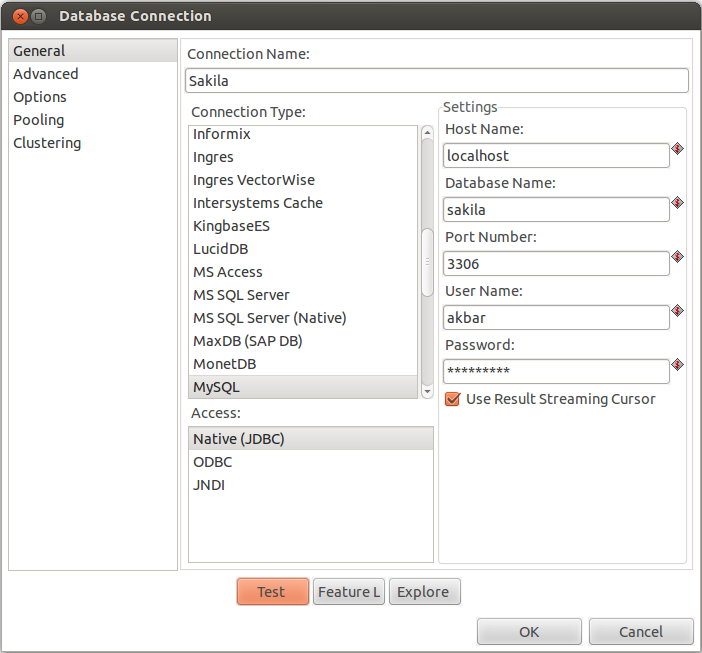
  3. Enter information similar to what’s shown below:
  4. PDI Database Connection

  5. Click Test.
  6. Click OK.

In Explorer in the left pane of PDI, right-click on the Sakila database connection, click Explore.

You should now be able to view the tables in the Sakila database.

Introduction

Sakila is an example database for MySQL. It is often used for training purposes.

Installation

cd ~/Downloads
wget http://downloads.mysql.com/docs/sakila-db.tar.gz
tar -xzf sakila-db.tar.gz
cd sakila-db
mysql -u root -p < sakila-schema.sql
mysql -u root -p < sakila-data.sql


Introduction

Open Kettle

cd ~/bin/data-integration

To run Spoon:

./spoon.sh

Create a new repository

Run the following in a terminal.

mkdir ~/kettle

The steps below are performed within the PDI UI.

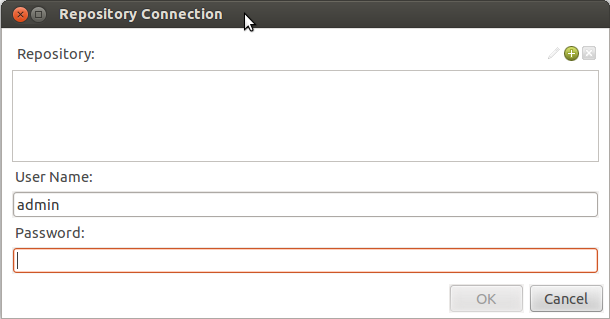
    Repository Connection

    Repository Connection

  1. In the Repository Connection dialog box, click the small green plus symbol.
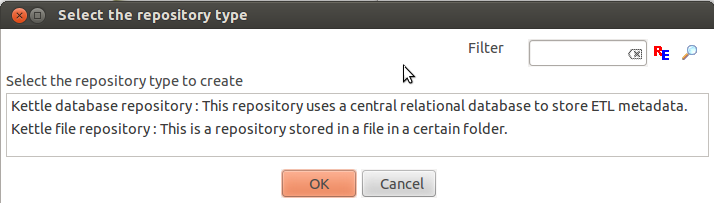
  2. Repository Type

    Repository Type

  3. In the Select the repository type dialog box, select Kettle file repository.
  4. Click OK
  5. In the File repository settings dialog box, enter the following information:
    • Base directory: /home/akbar/kettle
    • Read-only repository?: Leave unchecked
    • Hide hidden folders and files: Leave unchecked
    • ID: kettle-repo
    • Name: Kettle Repository
  6. Click OK.
  7. Click OK.